

Introduction
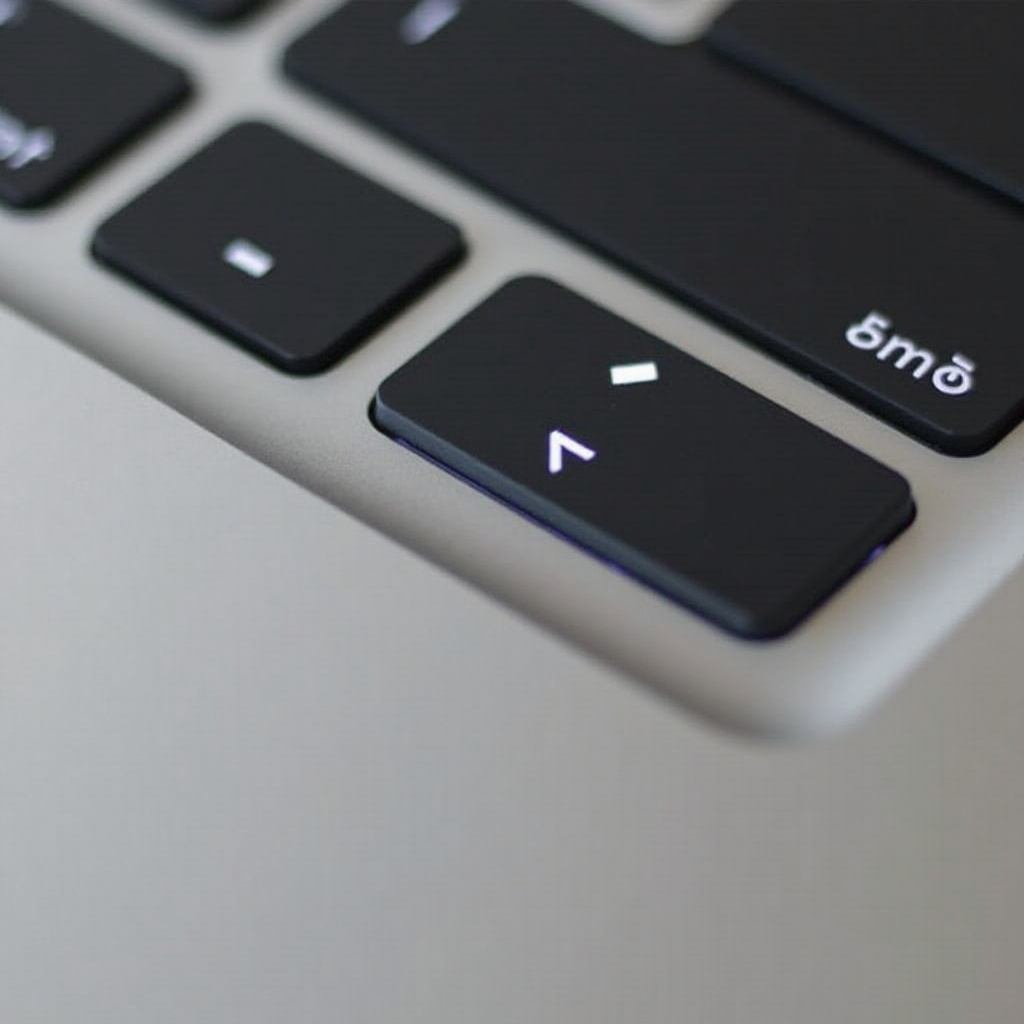
Finding that your Shift key isn’t working on your MacBook can be incredibly frustrating, particularly if you’re someone who frequently uses keyboard shortcuts or types formulas that rely on this essential key. While a malfunctioning Shift key can complicate everyday tasks like typing capital letters or symbols, there are ways to resolve it. Thankfully, this guide will lead you through potential causes, as well as simplistic and advanced solutions to resolve the issue. Whether the problem is due to software or hardware, rest assured there are methods to restore your Shift key’s functionality. Let’s begin by understanding what might be causing this issue and how you can solve it effectively.
Common Causes of Shift Key Malfunctions
When attempting to resolve the issue of a non-working Shift key on your MacBook, pinpointing the root cause is fundamental. Various reasons can trigger this malfunction:
-
Software Glitches: Occasionally, the operating system encounters bugs or conflicts between applications that affect keyboard functionality.
-
Keyboard Settings: Sometimes, incorrect keyboard configurations can override normal functions, leading to unresponsive keys.
-
Accumulation of Dirt: Over time, the build-up of dust or debris under the keys can impair their use.
-
Hardware Damage: Any physical damage, due to impact or liquid spills, might also influence hardware operation.
Understanding these potential causes will assist you as you choose your troubleshooting methods. Next, let’s look at some easy steps that might fix the issue without overcomplicating matters.
Easy Troubleshooting Steps
Before diving into technical fixes, start with these minor troubleshooting tactics:
-
Restart Your MacBook: Often a system restart clears temporary errors.
-
Check for Updates: Make sure your macOS is current, as updates can fix known issues.
-
Inspect the Keyboard Preferences: Open System Preferences > Keyboard > Input Sources to confirm your keyboard layout is properly set.
-
Try an External Keyboard: Connecting an external keyboard can help determine whether the Shift key issue is hardware-related or not.
-
Test in Safe Mode: Restart while holding down the Shift key to enter Safe Mode. If the Shift key works here, a third-party app could be causing the issue.
If these basic steps don’t fix the problem, delve into more complicated software fixes to address it.
Advanced Fixes for Software Issues
When straightforward tactics fail to resolve the issue, you might try more advanced software solutions:
- Reset NVRAM/PRAM:
-
Shut down your MacBook. On restart, hold down Option + Command + P + R for about 20 seconds.
-
Reset the SMC:
-
For MacBooks with non-removable batteries, shut it down. Then, hold Shift + Control + Option and press the power button for 10 seconds.
-
Reinstall macOS: As a last resort, back up your data and reinstall macOS to resolve persistent software issues.
With these methods, deeper software glitches can be resolved. If the Shift key still fails, consider inspecting for hardware issues.

Addressing Potential Hardware Problems
Persistent issues may indicate hardware malfunction. While trickier, addressing physical problems can be vital:
-
Inspect and Clean the Keyboard: Carefully using compressed air may remove underlying debris affecting the Shift key’s functionality.
-
Check for Physical Damage: Any visible damage like dents or exposure to moisture may point to the cause of malfunction.
-
Test Keyboard Connections: For those comfortable with hardware checks, ensure the keyboard’s ribbon connector is secure to the motherboard.
-
Consider a Keyboard Replacement: Should cleaning fail and damage be visible, a new keyboard might be necessary.
Hardware issues can be particularly challenging; let’s outline when professional help might be warranted.
When to Consult a Professional
If attempts to fix the issue feel overwhelming or unproductive, a professional evaluation could be the best solution. Rely on certified technicians for problems such as:
– Extensive hardware malfunctions
– Lack of confidence in handling your device’s internal components
– Combined issues with other hardware parts
Professional intervention can save time and additional complications.
Conclusion
Though a faulty Shift key can be a vexing obstacle, employing both simplistic and intricate fixes can often solve it. By addressing potential software flaws or engaging with mechanical blockages, users can typically restore their MacBook’s functionality. If in doubt, professional services are always a reliable alternative for enduring solutions.
Frequently Asked Questions
How can I fix the Shift key not working without external tools?
Restart your MacBook and update macOS. Check keyboard settings and use Safe Mode to rule out third-party interference.
Is a replacement the only solution if the Shift key is stuck?
Not necessarily. Cleaning the keyboard or resetting macOS components often resolves physical blockages or minor configuration issues without needing a replacement.
Will reinstalling macOS solve all keyboard issues?
Reinstalling macOS can fix software-related keyboard issues. However, it won’t address hardware problems or physical damage.