
Introduction
JBL headphones deliver excellent sound quality with the freedom of wireless connectivity, making them a popular choice for music lovers and professionals alike. However, to fully enjoy the capabilities of your JBL headphones, proper syncing is crucial. This comprehensive guide will walk you through the syncing process across various devices, along with essential troubleshooting steps to ensure a seamless audio experience.
Understanding JBL Headphones and Bluetooth Technology
To appreciate how JBL headphones sync with devices, it’s essential to understand Bluetooth technology. Bluetooth allows devices to communicate wirelessly over short distances by transmitting data through radio waves. This technology is what provides JBL headphones with their convenient wireless audio capabilities. Knowing how Bluetooth operates can help you address any connectivity issues efficiently. Once you grasp this, syncing your JBL headphones will be a straightforward task.
Step-by-Step Guide to Syncing JBL Headphones
Syncing JBL headphones is a simple process once you’re familiar with the steps. Whether you’re connecting to a smartphone, tablet, or computer, here’s how you can get started:
- Preparing Your JBL Headphones for Pairing:
- Power on your JBL headphones by pressing the power button until the LED indicator lights.
-
Enter pairing mode by holding the Bluetooth button (or power button on some models) until the LED flashes, indicating the headphones are discoverable.
-
Syncing with Different Devices:
- Smartphones:
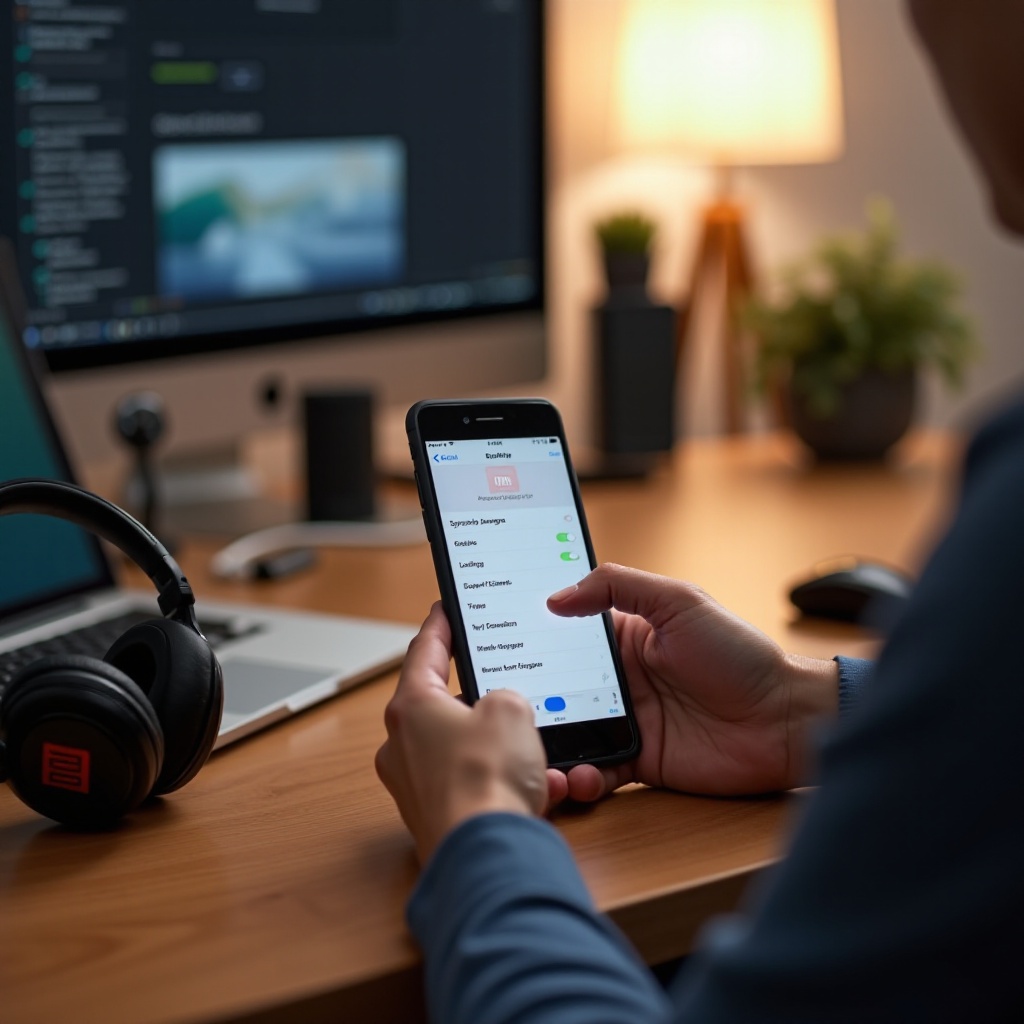
- Go to your smartphone’s Bluetooth settings.
- Ensure Bluetooth is enabled and scan for new devices.
- Select your JBL headphones from the available devices list, and your phone will confirm once they’re connected.
- Laptops and Tablets:
- Access the Bluetooth settings on your device.
- Turn on Bluetooth and search for your JBL headphones.
- Initiate the connection by selecting the detected JBL device.
With your headphones successfully paired, you’re ready to explore their full functionality across all your devices.
Troubleshooting Common Syncing Issues
While syncing JBL headphones is usually straightforward, you might encounter occasional issues. Common problems include connectivity interference or competing devices. Here’s how to troubleshoot effectively:
- Interference and Connectivity Problems:
- Keep headphones and pairing devices close to minimize signal disruptions.
- Ensure no other devices are attempting to connect simultaneously to the same headphones.
-
Turn off unused Bluetooth devices nearby to prevent interference.
-
Multiple Device Connections:
- If your headphones are connected to another device, unpair them first before syncing with a new one.
- If you experience persistent issues, try resetting the Bluetooth settings on your main device.
Transitioning smoothly from troubleshooting to maintaining performance will enhance your JBL experience significantly.
Tips for Maintaining Optimal Bluetooth Performance
To get the best use out of your JBL headphones, regular maintenance is key.
- Maintain a Stable Connection:
- Keep the device-to-headphone distance within the recommended Bluetooth range.
- Make sure your headphones’ firmware is updated regularly; this can typically be done through the JBL app or their official website.
These maintenance tips ensure you enjoy an uninterrupted and high-quality audio experience with your JBL headphones.
Advanced Troubleshooting Techniques
If general troubleshooting steps aren’t resolving the issues, you might need to delve into more advanced techniques:
- Resetting JBL Headphones to Factory Settings:
- Power off your headphones.
-
Hold the power button for about 10 seconds, watching for the LED signal for a reset.
-
Handling Software Compatibility Issues:
- Verify your device’s operating system is up to date to avoid compatibility problems.
- Consult JBL’s support resources for assistance with persistent issues.
With these advanced solutions, your JBL headphones should sync effortlessly, providing you with the optimal wireless audio experience.
Conclusion
Syncing your JBL headphones is more than just connecting a device; it’s about unlocking the full potential of your audio experience. With these detailed steps and troubleshooting advice at your disposal, you can ensure JBL’s renowned sound quality is delivered wirelessly and seamlessly to your ears. Enjoy the freedom and versatility that JBL brings.
Frequently Asked Questions
Why won’t my JBL headphones sync?
Check for interference, update the firmware, and ensure your device’s Bluetooth is on. Restart the device if issues persist.
How can I improve Bluetooth range for my JBL headphones?
Keep devices within the recommended range, free of physical barriers or electronics that may interfere.
Can I sync my JBL headphones with multiple devices at the same time?
Some JBL models support multi-point connections but usually require manually switching between devices for stable use.