

Introduction
Pairing your Samsung earbuds correctly is essential for a seamless audio experience. These wireless devices are popular due to their portability and sound quality. However, connecting them can be confusing if you’re not familiar with the process. This guide will help you navigate putting your Samsung earbuds into pairing mode, ensuring a smooth connection with various devices.
Understanding Your Samsung Earbuds
Before diving into the pairing process, it’s vital to understand the different Samsung earbud models and their key features. Samsung offers several options, such as the Galaxy Buds, Buds+, and Buds2 Pro, suitable for diverse needs and preferences.
-
Overview of Current Samsung Earbud Models: Samsung’s collection includes models like Galaxy Buds Live, Galaxy Buds Pro, and the newer Galaxy Buds2 Pro. Each comes with distinct features, like noise cancellation and specific audio modes, catering to varied user requirements.
-
Key Features to Know Before Pairing: Familiarity with your model’s functions can enhance your pairing experience. Most models are equipped with touch controls, quick pairing abilities, and the latest Bluetooth technology for stable connections.
Understanding these features provides a good foundation for preparing your earbuds for pairing. Now, ensure your smartphone or laptop is ready for this connection.

Preparing for Pairing Mode
Ensuring that your device can connect to the earbuds smoothly is the next step. This involves adjusting some settings to ensure compatibility and readiness.
-
Compatibility Check with Your Device: Confirm that your device supports Bluetooth connections. While most modern smartphones, tablets, and computers do, verifying in your settings is always beneficial.
-
Ensuring Optimal Device Settings for Pairing:
- Go to the Bluetooth settings on your device and ensure Bluetooth is enabled.
- Clear any previous connections to avoid interference.
Once your device is prepared, it’s time to activate pairing mode on your Samsung earbuds.
How to Put Samsung Earbuds into Pairing Mode
Activating pairing mode is usually straightforward but varies slightly depending on your earbud model. Here’s a concise guide:
- Step-by-Step Instructions for Latest Models:
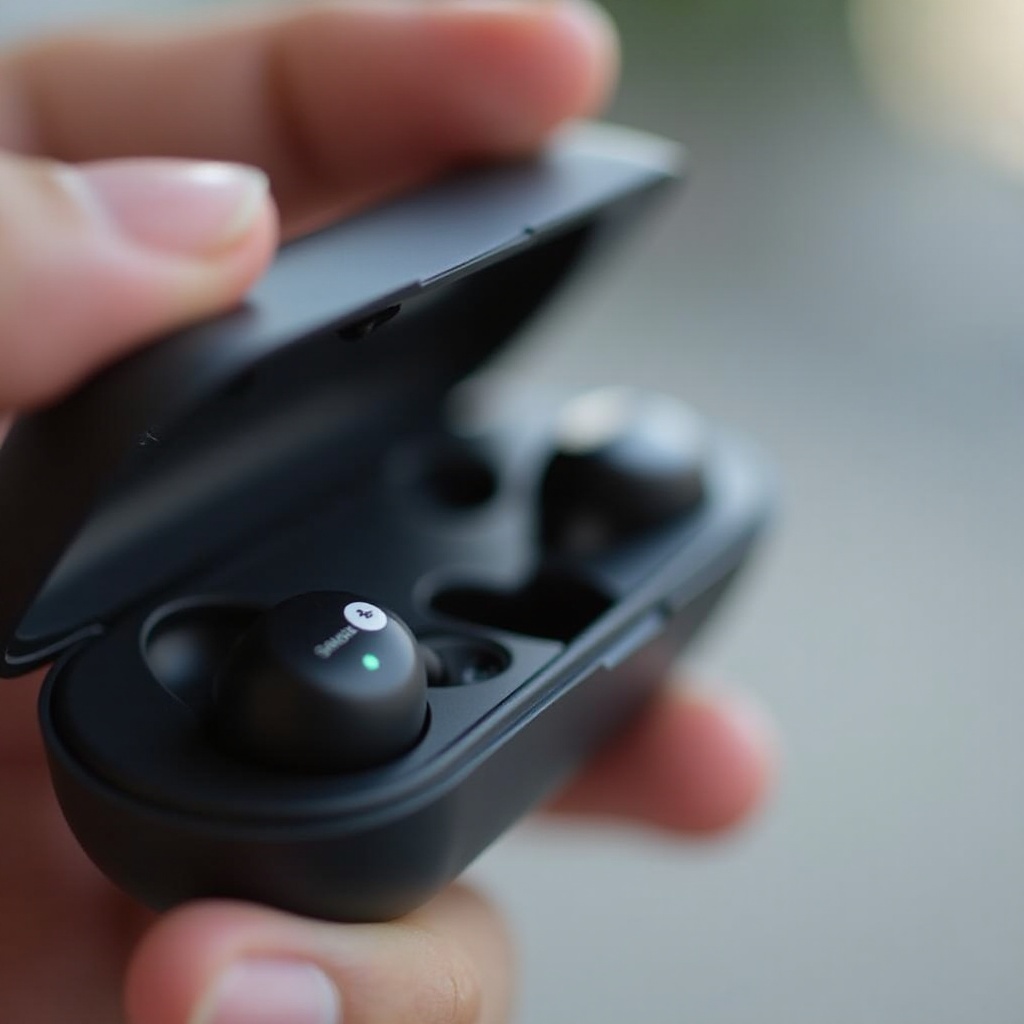
- Place your earbuds in their charging case and close it momentarily.
- After waiting for a few seconds, open the case.
-
The earbuds should enter pairing mode, as indicated by a flashing LED light.
-
Using LED Indicators for Pairing Status: The blinking LED on the earbuds signals they are in pairing mode. Check your user manual for specific patterns relevant to your model.
-
Troubleshooting Common Activation Issues: If your earbuds don’t enter pairing mode, try resetting them. Hold the touchpads for about 10 seconds, place the earbuds back into the case, and attempt activation again.
Once paired, maintaining a reliable connection is crucial for optimal audio performance.
Pairing with Various Devices
Connecting your Samsung earbuds to different devices involves a simple process. Here’s how you can do it easily:
- Pairing with Android Devices:
- Turn on Bluetooth on your phone.
- Select ‘Galaxy Buds’ from the list of available devices.
-
Approve any pairing prompts to complete the connection.
-
Pairing with iPhones:
- Open the Settings app on your iPhone and tap Bluetooth.
-
Under ‘Other Devices,’ find your Galaxy Buds and tap to connect.
-
Pairing with Laptops and Other Bluetooth Devices:
- Access the Bluetooth settings on your laptop or device.
- Choose your Galaxy Buds from the available devices.
- Follow on-screen instructions to complete the connection.
With your earbuds connected, ensuring they maintain this connection becomes the next focus.
Maintaining a Strong Connection
Ensuring a strong connection between your earbuds and device guarantees uninterrupted audio. Here are a few practical tips:
-
Keeping Firmware Updated: Regular updates via the Samsung Wearable app can improve performance and fix minor issues.
-
Minimizing Interference for Better Performance:
- Keep your device within the optimal Bluetooth range.
- Avoid areas with dense Wi-Fi or Bluetooth traffic that could disrupt connectivity.
If connectivity issues arise, try the following troubleshooting tips.
Troubleshooting Common Pairing Issues
Even with proper setup, issues can occur. These solutions address common problems:
-
Solving Connection Drops and Interruptions: If audio frequently drops, try moving the earbuds closer to the device and ensure no physical barriers interfere with the signal.
-
Resetting Your Samsung Earbuds to Factory Settings: For persistent issues, perform a factory reset. Hold both earbuds’ touchpads for over 15 seconds until you hear a reset prompt, then try pairing them again.
These steps should help resolve frequent connectivity issues.
Conclusion
By mastering the process of pairing your Samsung earbuds, you unlock a world of wireless possibilities. Whether you’re connecting to a smartphone or laptop, the outlined steps streamline the experience. Explore all the features Samsung earbuds offer to enhance your auditory journey.
Frequently Asked Questions
Why won’t my Samsung earbuds go into pairing mode?
Ensure they are charged and not connected to another device. If issues persist, try resetting the earbuds.
How can I reset my Samsung earbuds if they won’t pair?
To reset, put them in the case, close it, and manually hold touchpads on both earbuds for about 15 seconds.
Can I pair my Samsung earbuds with multiple devices?
Yes, but you can connect only one device at a time. Disconnect from the current one before initiating a new pairing.