
Introduction
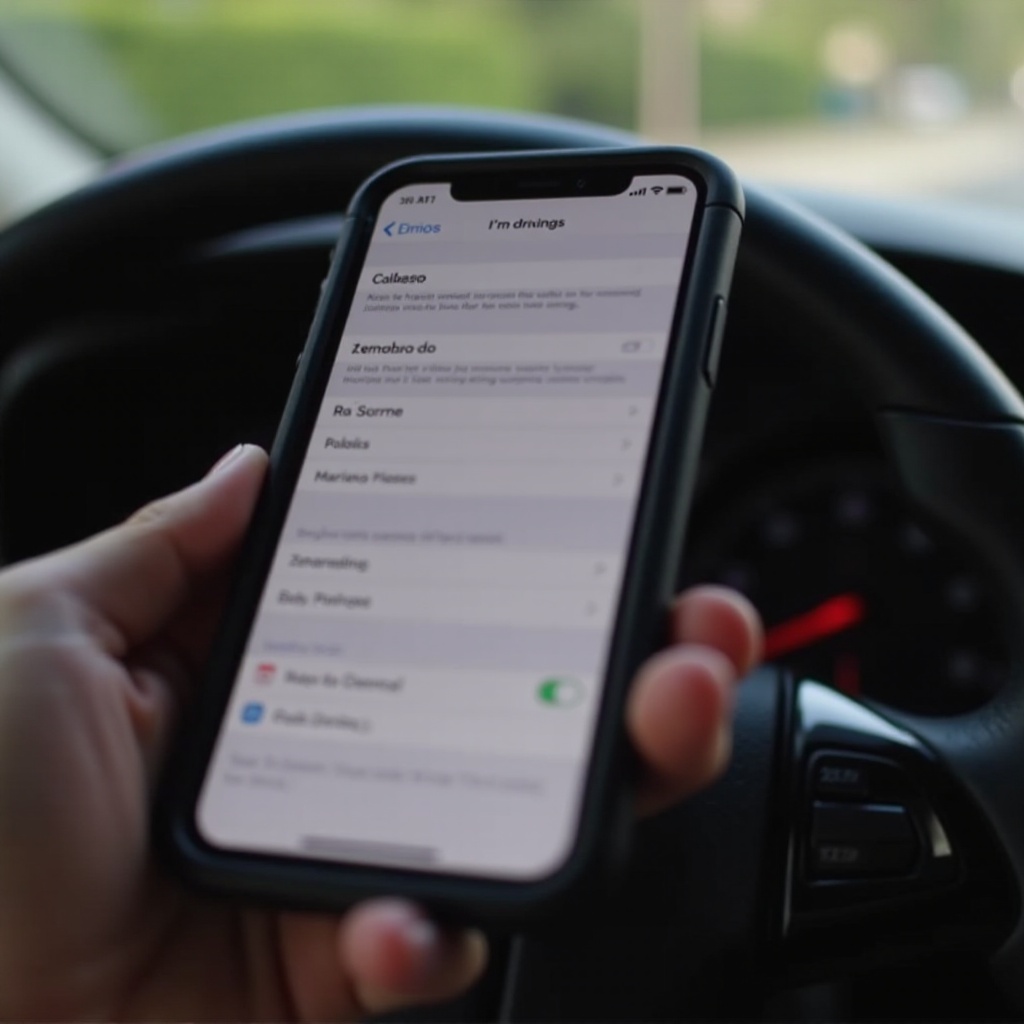
I’m Driving’ mode on the iPhone is designed to boost road safety by reducing distractions. It silences notifications and auto-replies to messages while driving. Although it’s beneficial from a safety standpoint, there are occasions when you might need to disable it. Understanding when and how to turn this feature off ensures that your iPhone functions optimally in all scenarios.
What is ‘I’m Driving’ Mode on iPhone?
This feature is part of the ‘Do Not Disturb While Driving’ setup, aiming to decrease phone-induced distractions while on the road. When enabled, it automatically mutes calls and alerts, sending pre-set texts to let others know you are driving. Acknowledging its functionality helps in deciding the applicability of turning off this mode for enhanced user interaction in various situations.
When to Disable ‘I’m Driving’ Mode
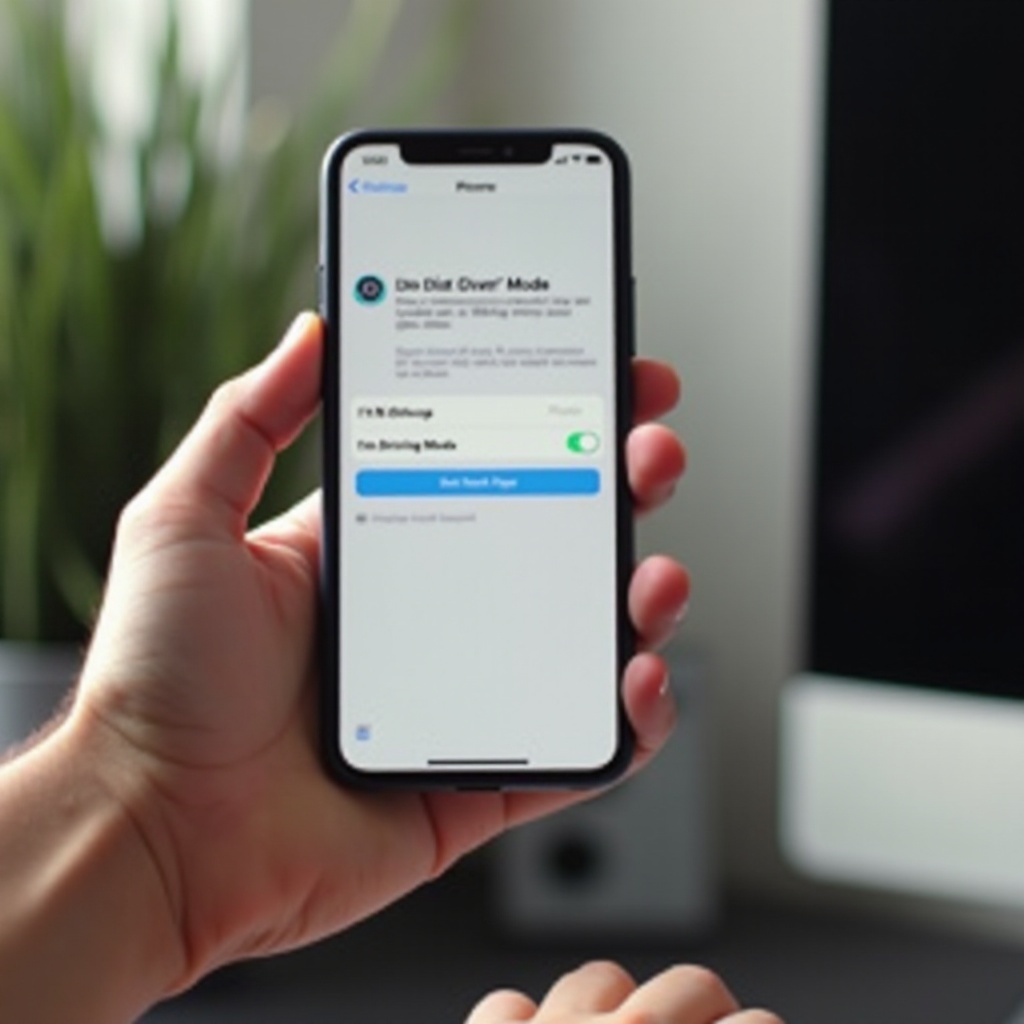
Sometimes, being on public transport or riding as a passenger requires phone access. During such instances, ‘I’m Driving’ mode could be counterproductive. For example, using navigation apps or when expecting important calls, knowing how to toggle this feature off becomes crucial. The ability to adapt the feature to your current needs ensures continuous convenience and usability.
Steps to Turn Off ‘I’m Driving’ Mode on iPhone
Here are the easy steps to disable this mode when needed:
1. Open Settings on your iPhone.
2. Scroll to ‘Focus’ and tap ‘Do Not Disturb.
3. Head to ‘Do Not Disturb While Driving’ and adjust the method of activation to Manual, ensuring it doesn’t turn on automatically.
4. Another way is through the Control Center, reached by swiping down from the top-right corner. Tap the car icon to enable or disable as needed.
Familiarity with these steps gives you the flexibility to manage your phone’s notification settings effectively.
Troubleshooting Common Issues
If ‘I’m Driving’ mode refuses to turn off, try these solutions:
– Force restart your iPhone by pressing the power button until you see the Apple logo. Once restarted, check the settings.
– If activation persists, ensure your phone isn’t set to recognize car Bluetooth connections as a trigger. Adjust the setting to prevent undesired activation.
By addressing these common issues, you maintain control over your device’s functioning and prevent unnecessary disruptions.
Customizing ‘Do Not Disturb While Driving’ Settings
Customization is key to aligning the feature with your needs. You can:
– Change the default automated message under ‘Auto-Reply’ in the ‘Do Not Disturb’ settings.
– Select specific contacts to receive calls even when the mode is active, ensuring that you don’t miss critical notifications.
Customizing these settings personalizes your iPhone experience, supporting both safety and essential communication without compromise.
Conclusion
Effectively managing ‘I’m Driving’ mode on your iPhone can significantly impact your user experience. By knowing how to disable it and customize its settings, you ensure your device meets both safety standards and communication needs. Keeping informed enhances your iPhone experience to be both safe and efficient.
Frequently Asked Questions
How do I know if ‘I’m Driving’ mode is active on my iPhone?
Your iPhone will show a car icon in the status bar or Control Center, indicating the mode is active.
Can I enable ‘I’m Driving’ mode automatically?
Yes, set it to activate automatically via ‘When Connected to Car Bluetooth’ or ‘Automatically’ under settings.
What is the benefit of keeping ‘I’m Driving’ mode on?
It increases road safety by minimizing distractions, silencing notifications, and sending automatic text replies while driving.